Configuring Outgoing Mail Server Settings (SMTP)
Before you are able to distribute reports by email, you need to configure EPASS Reports to use your outgoing mail server. If the SMTP settings aren't configured correctly, emailed reports won't be delivered.
Notes
-
You need the Admin - System Management security option for EPASS Reports to complete the following task.

-
Changes to the SMTP settings do not take effect until the EPASS Reports service is restarted. The EPASS Reports service typically runs on your web server. If you are not comfortable restarting this service yourself, please contact EPASS Support or your IT administrator for assistance.
To Configure SMTP Settings
-
At the top of the screen, click Admin.
-
On the Admin screen, click System Settings.
-
Enter the following values:
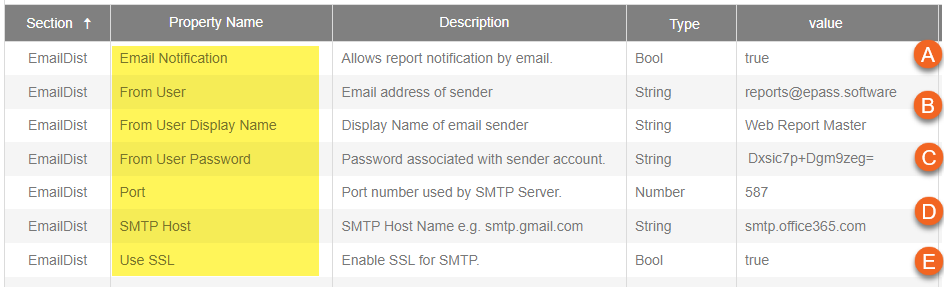
A Email Notification: Setting this value to True enables you to notify report recipients by email that they have a report ready for them in My Reports. B From User/From User Display Name: Enter the email address and name that you want EPASS Reports to use when sending emails. C From User Password: Enter the password for the email account entered in From User. (Note: The password is masked once Save Changes is clicked.) For anonymous SMTP accounts where a password is not required, this value must be empty. If this value contains a password, remove it, save the configuration and then restart the EPASS Reports service. D Port/SMTP Host: Enter the Outgoing Mail Server host name and port. E Use SSL: Set this to True to enable SSL. -
Click Save Changes.

- Restart the EPASS Reports Service for the changes to take effect.
See Also
Updated
April 28, 2026